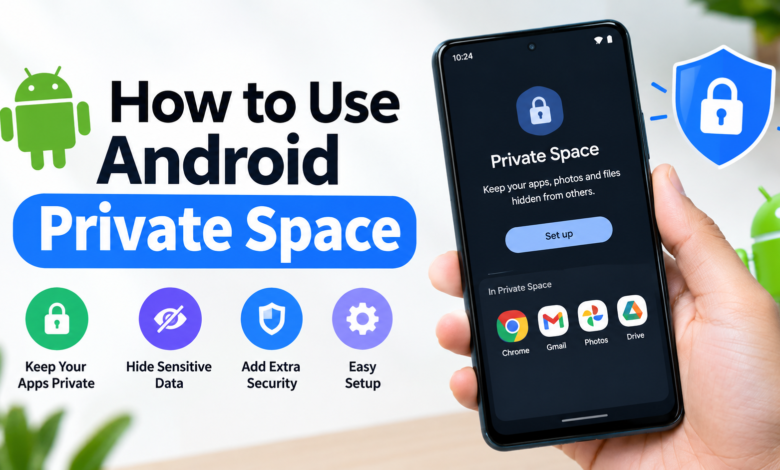
If you want to keep certain apps, files, accounts, and personal information away from the main part of your phone, Android Private Space can be a very useful feature. It creates a separate, protected area on compatible Android devices where you can install apps and keep them isolated from your regular phone environment. This is especially helpful if you share your phone with someone, use the same device for personal and work accounts, or simply want an extra layer of privacy.
Learning how to use Android Private Space is not difficult once you understand how the feature works. Instead of relying on complicated third-party privacy apps, Private Space is built into supported versions of Android and works alongside your normal app space. You can lock it when you are finished using it, and when it is locked, the apps inside it are hidden from several common parts of the phone.
In this guide, we will explain Android Private Space step by step, including how to set it up, install apps, move data, lock and unlock it, and understand its limitations. The goal is to give you a practical explanation that is easy to follow, even if you have never used Private Space before.
What Is Android Private Space?
Android Private Space is a dedicated area on your Android phone designed to separate selected apps and their data from the rest of your device. Think of it as having a smaller, protected app area inside your main phone. Apps installed there operate separately from their versions outside Private Space, which can be useful when you want to keep different accounts or activities apart.
The feature is designed with privacy in mind. When Private Space is locked, the apps inside it are hidden from the launcher and some other areas of the operating system. Notifications from those apps are also generally unavailable while the space is locked. This means someone casually looking through your phone is less likely to see the apps you have placed there.
Private Space is particularly useful for situations where you want separation rather than simply hiding an app. For example, you could have one messaging app installed normally for everyday use and another copy inside Private Space for a separate account. The two installations can have different settings and account information.
Requirements for Using Android Private Space
Before learning How to Use Android Private Space to use Android Private Space, it is important to check whether your phone supports the feature. Private Space was introduced with Android 15, so your device generally needs to be running a compatible version of Android. However, availability can vary depending on the phone manufacturer, software version, and region.
Your phone may also require certain security settings to be enabled. A screen lock such as a PIN, password, or pattern is commonly used to protect the device. Private Space can also have its own lock, allowing you to create a separate authentication method for the private area.
Another important point is that Private Space is not simply a second user profile. It is integrated into the Android operating system and is intended for keeping selected apps and their data separate. If you cannot find Private Space on your phone, check for system updates and search your Settings app for “Private Space.”
How to Set Up Android Private Space
Setting up Private Space usually starts in your Android security or privacy settings. Open the Settings app on your phone and look for the section related to Security & privacy. Depending on your device and Android version, the exact wording and menu location may be slightly different.
Look for Private Space and select the option to set it up. Android will guide you through the process and explain How to Use Android Private Space the feature works. You may be asked to authenticate yourself using your existing device lock before continuing.
During setup, you may have the option to use your existing device lock or create a separate lock for Private Space. Choosing a separate authentication method can provide additional separation because someone who knows your regular phone unlock method may not automatically know the credentials for your private area.
How to Use Android Private Space
Once Private Space has been created, you can access it from the app drawer. On supported Android devices, the private area generally appears separately from your regular applications. When the space is unlocked, you can open the apps stored there just like other apps on your phone.
To use an app inside Private Space, simply tap its icon and authenticate if required. The app runs within the private environment, so its data remains associated with the Private Space installation rather than your normal installation of the same app.
This separation can be useful when managing multiple accounts. For example, suppose you use a social media application for personal activity but also need a separate account for work. Instead of constantly signing in and out, you may be able to install another copy inside Private Space and use the two installations independently.
How to Install Apps in Private Space
Installing an app into Private Space is one of the most useful parts of the feature. Open your Private Space and look for the option to install an app. On supported devices, you can use the Google Play Store within Private Space to download applications.
Apps installed inside Private Space are separate installations. This means installing an application in Private Space does not simply move your existing app from the main profile. Instead, Android creates a separate app environment for the private version.
This distinction matters when you are managing data. If you already have an application installed outside Private Space, its account information and app data do not automatically appear inside the private installation. You generally need to sign in separately and configure the app again.
Can You Move Existing Apps to Private Space?
One common question about Android Private Space is whether an existing application can simply be moved into it. In practice, Private Space is designed around separate app installations rather than physically transferring the existing app and all its data into the private environment.
If an application is already installed on your phone, you can install another copy inside Private Space when the app supports the setup. The private copy operates independently from the normal version.
This can actually be an advantage. You can keep your regular account outside Private Space while using another account inside it. However, it also means you may need to download the app again and sign in separately. Any locally stored information from the original installation may not automatically transfer to the private version.
How to Lock Private Space
Locking Private Space is an important part of keeping your information protected. When you finish using the apps inside the private area, you can lock Private Space instead of leaving it open.
Depending on your Android version and phone manufacturer, Private Space may offer an automatic locking option. This can be configured to lock the space whenever your device locks or after a particular period of inactivity.
When Private Space is locked, the applications inside it are designed to become unavailable from the normal phone experience. Their notifications and other visible information are also restricted. This is especially useful if you regularly hand your phone to another person.
How to Unlock Android Private Space
Unlocking Private Space is straightforward. Open the app drawer and locate the Private Space section. Select it and use the authentication method you configured during setup.
If you chose a separate lock for Private Space, enter that PIN, password, or other supported authentication method. Once authentication succeeds, your private applications become available again.
If you forget the Private Space lock, recovery options can be limited depending on your device and configuration. For this reason, it is important to use credentials you can remember and to understand the recovery process before storing important information inside Private Space.
How Private Space Helps Protect Your Privacy
The biggest benefit of Private Space is separation. Instead of simply hiding an application icon, Android provides a dedicated environment where the app and its associated information can remain separate from the main profile.
This can reduce accidental exposure when someone is browsing your phone. For example, if you have a personal messaging app inside Private Space, someone using your phone normally may not see that app while the private area is locked.
Private Space can also be useful for people who want a clearer boundary between different types of phone activity. Keeping work-related apps separate from personal applications can make it easier to manage accounts and reduce the need to constantly switch profiles within individual applications.
Things You Should Know Before Using Private Space
Although Private Space provides useful privacy protections, it should not be treated as a completely invisible or magical storage system. Certain information about the device or its activity may still be visible through system-level functions, administrative controls, or other mechanisms.
You should also remember that Private Space does not automatically make every application private. An app inside the space can still collect and process information according to its own privacy policy. Putting an app inside Private Space does not change what that app itself is allowed to do.
Another limitation is that some features may not work exactly like they do in the main profile. App notifications, widgets, backups, sharing features, and other functions can behave differently depending on the application and Android version.
Private Space vs. Simply Hiding an App
There is an important difference between hiding an app and using Private Space. A traditional launcher feature may simply remove an app icon from view while the application and its data continue operating normally in the main profile.
Private Space goes further by providing a separate environment for the apps you place there. The private installation has its own app data and can be locked independently.
For people who only want a cleaner home screen, ordinary app hiding may be enough. However, if your goal is stronger separation of apps, accounts, and private information, Android Private Space can be a more suitable option.
Best Ways to Use Android Private Space
There are several practical ways to use Private Space. One popular approach is to keep sensitive communication apps there. If you use a messaging or social networking application for a private account, placing the separate installation inside Private Space can help keep it away from your normal app collection.
Another useful approach is separating work and personal applications. You could keep your everyday productivity tools in the main profile while installing selected work apps inside Private Space. This does not replace a business-managed work profile, but it can provide a convenient separation for personal device use.
Private Space can also be useful when you occasionally need an application but do not want it sitting openly in your regular app drawer. When the space is locked, those applications can remain hidden from the normal phone interface.
Common Problems With Android Private Space
One issue users may encounter is not seeing Private Space at all. The first things to check are your Android version, system updates, and device compatibility. Manufacturer-specific software can also change where the setting appears.
Another common issue involves app data. If you install an app in Private Space, do not expect it to automatically contain the information from the same app installed outside the space. The two installations are separated, so you may need to sign in and configure the private copy independently.
Users may also become confused when notifications stop appearing after locking Private Space. This is generally part of the privacy design rather than a malfunction. If you need notifications from a particular application at all times, consider whether placing that app inside Private Space is appropriate for your needs.
Is Android Private Space Worth Using?
For many Android users, Private Space is a convenient built-in privacy feature. It does not require downloading a third-party locker or relying entirely on a separate security application. Instead, it uses Android’s own system-level approach to isolate selected apps.
Its usefulness depends on what you are trying to accomplish. If you need a separate area for apps, accounts, or personal activity, Private Space can be a practical solution. If you need advanced organizational controls for a business environment, a dedicated work profile or enterprise management solution may be more appropriate.
The most important thing is to understand what Private Space actually does. It creates separation and adds protection, but it is not a replacement for strong device security, careful app permissions, and good privacy habits.
Final Thoughts on How to Use Android Private Space
Learning how to use Android Private Space can make your phone more flexible and private without requiring complicated software. Once you set it up, you can install selected apps inside the protected area, use separate accounts, and lock the space when you are finished.
The feature is especially useful for people who want more control over what appears in their normal phone environment. Whether you want to separate personal and work apps, keep a second account away from your main profile, or simply create an additional layer of privacy, Private Space gives you a built-in option to consider.
For the best experience, keep your Android software updated, use a strong screen lock, choose a Private Space authentication method you can remember, and understand the difference between private app storage and complete anonymity. Used correctly, Android Private Space can be a simple but valuable part of a broader mobile privacy strategy.
You May Also Read: Veronica Stigeler