YouTube Settings YouTube is more than just a place to watch videos. With millions of videos, channels, Shorts, live streams, playlists, and personalized recommendations, the platform can feel very different depending on how your account is configured. That is where YouTube settings become useful. The right settings can help you control notifications, privacy, playback, recommendations, accessibility, and other parts of your viewing experience.
Many people use YouTube every day without exploring the settings menu. As a result, they may receive too many notifications, see recommendations that are not useful, or leave privacy options configured differently from what they actually want. Spending a few minutes reviewing these options can make YouTube feel much more organized and comfortable.
YouTube regularly updates its interface, so the exact location or wording of some options can vary between desktop, Android, iPhone, and other devices. YouTube’s official Help Center currently organizes settings and account controls into areas such as account management, privacy, notifications, accessibility, and viewing features.
What Are YouTube Settings?
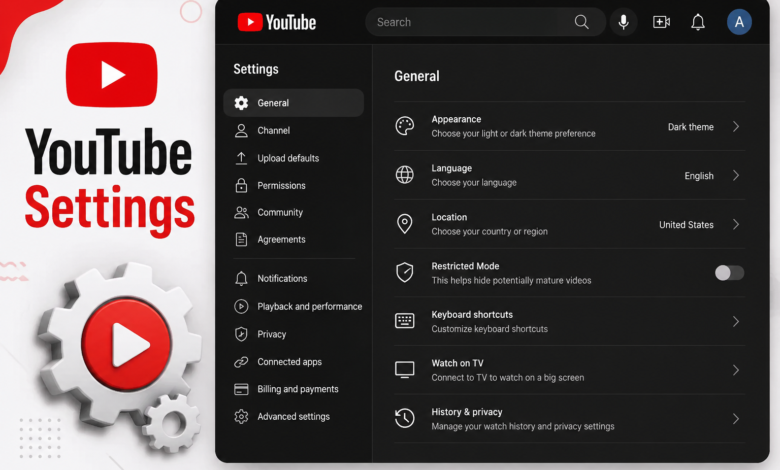
YouTube settings are the controls that let you customize how the platform works for you. Depending on your device and account, you can use them to manage notifications, privacy, playback-related preferences, viewing history, downloads, accessibility features, and other account options.
You can generally access important settings by selecting your profile picture and opening Settings. On mobile devices, the menu is designed for touch controls, while the desktop version provides a broader navigation layout. Some settings may also appear directly on individual videos or inside your Google Account.
The important thing to understand is that there is no single “best” configuration for everyone. A student who mainly watches educational videos may want a different setup from someone who uses YouTube for music, entertainment, tutorials, or creating content. The goal is to choose settings that match your own needs.
How to Access YouTube Settings
On a computer, start by opening YouTube and signing into the account you want to manage. Select your profile picture in the upper-right area and choose Settings. From there, you can explore the available categories and adjust the options that are relevant to your account.
On the YouTube mobile app, tap your profile picture and select Settings. The available sections can differ slightly depending on whether you are using Android or iPhone. YouTube also notes that notification settings may vary by device.
If you are using YouTube on a smart TV, game console, or streaming device, some controls are handled differently. Shared devices deserve extra attention because another person might use the same screen. YouTube provides features such as account lock on supported TV devices to help protect account access.
YouTube Notification Settings
Notifications are one of the first YouTube settings worth checking. They can tell you about new uploads, live streams, activity involving your channel or comments, and recommended videos. However, if too many notifications are enabled, your phone or computer can quickly become distracting.
YouTube allows users to customize notification preferences. On supported devices, you can manage general notifications and choose which categories you want to receive. You can also manage notifications for individual channels after subscribing.
For individual channels, YouTube provides options such as All, Personalized, and None. “All” is useful when you want more updates from a channel, while “Personalized” lets YouTube decide which notifications are most relevant. Choosing “None” stops notifications from that particular channel.
Managing YouTube Privacy Settings
Privacy is another important part of YouTube settings. Your YouTube activity can influence your experience on the platform, so it is worth understanding which information and activities you want to manage.
YouTube provides a Your Data in YouTube area where users can review certain privacy and activity controls. According to YouTube, this area can include information related to video privacy, playlist privacy, subscription privacy, purchased videos, and comments.
It is a good idea to review privacy settings from time to time, especially if you use YouTube on multiple devices. You should also make sure you are signed into the correct account before changing account-specific settings. This simple step can prevent confusion when several Google accounts are used on the same device.
YouTube Watch History Settings
Watch history plays an important role in the YouTube experience. The videos you watch can help YouTube understand what content may be relevant to you, which can affect recommendations and other personalized features.
If your recommendations become less useful, reviewing your watch history and related controls can be worthwhile. YouTube provides options for managing, deleting, or turning off certain history controls. The exact options available can depend on your account and device.
History can also become messy when different people use the same account. For example, if one person watches cooking videos while another watches gaming tutorials, the resulting recommendations may not accurately reflect either person’s interests. Using separate accounts where appropriate can make the experience more personalized.
YouTube Playback and Video Settings
Playback settings affect how videos behave while you watch them. Depending on the device and video, YouTube provides controls for video quality, captions, playback speed, and other viewing features.
Video quality can be particularly important when you are using mobile data. Higher quality generally requires more data, while lower quality can be useful when your internet connection is slower or your available data is limited. You can also manually adjust quality on individual videos when necessary.
Playback speed is another useful option. Educational videos, tutorials, interviews, and other content can sometimes be easier to follow when played at a different speed. Rather than changing every setting permanently, it can be practical to adjust playback speed based on the type of video you are watching.
YouTube Accessibility Settings
Accessibility features can make YouTube easier to use for people with different viewing or hearing needs. Captions are one of the most familiar examples. When available, captions can display spoken dialogue as text while you watch.
YouTube also provides accessibility-related controls that can be useful depending on your device. These options are designed to make the service easier to navigate and understand.
Even users who do not normally need accessibility features can find captions useful. They can help when audio is difficult to hear, when you are watching in a noisy environment, or when you want to follow unfamiliar words more easily.
Managing Recommended Videos
YouTube Settings recommendations are influenced by signals connected to your activity and interests. This can be helpful because the homepage can quickly surface videos related to subjects you enjoy.
However, recommendations can sometimes become less relevant. If you watch a topic only once, YouTube Settings may continue showing related content. This is one reason why being intentional about your viewing history can help keep your homepage useful.
Instead of relying entirely on recommendations, you can also use subscriptions and search to find content you already know you want to watch. This gives you more control over what appears in your viewing routine.
YouTube Settings for a Better Viewing Experience
A good YouTube Settings setup does not require changing every available option. In fact, changing too many settings without understanding them can make things more confusing.
Start with the basics: review notifications, privacy controls, history, playback preferences, and accessibility options. These areas have the greatest impact on everyday use.
It is also useful to check your settings after major app updates. YouTube’s interface and features can change over time, and options may appear in slightly different places depending on your device. The official YouTube Settings Help Center is the best place to check current instructions when a setting is difficult to find.
YouTube Settings on Shared Devices
Using YouTube Settings on a family computer, smart TV, or another shared device requires a little extra attention. Your account contains personalized information, including viewing activity and recommendations.
On supported TVs and streaming devices, YouTube offers an account-lock feature that can require a four-digit code before someone can access your account on that device. YouTube Settings says this feature is being rolled out to most supported smart TVs, streaming devices, and game consoles globally.
If you no longer use YouTube Settings on a shared device, it is also sensible to review which accounts are signed in. This is a simple privacy habit that can prevent someone else from accidentally using your account.
YouTube Settings for Creators
Creators have additional settings that go beyond ordinary viewing preferences. If you run a YouTube Settings channel, YouTube Studio provides tools for managing videos, channel customization, comments, analytics, live streams, and other creator features.
For creators, settings can affect how content is published and managed. Before uploading a video, it is important to review details such as visibility, audience-related information, comments, subtitles, and other available options.
YouTube’s official Help Center has dedicated sections for uploading videos, editing video settings, customizing channels, analytics, comments, live streaming, and monetization.
Common YouTube Settings Mistakes to Avoid
One common mistake is leaving notifications enabled for every channel. If you subscribe to many creators, this can result in a large number of alerts. Choosing notifications selectively can create a much cleaner experience.
Another mistake is ignoring privacy and history controls. Many users focus only on video quality and playback while forgetting that account and activity settings also influence how YouTube Settings works.
A third mistake is assuming that settings are identical on every device. YouTube Settings explains that notification settings can differ across devices, and some features are available only in particular environments.
Frequently Asked Questions About YouTube Settings
Where can I find YouTube settings?
You can normally open YouTube Settings settings by selecting your profile picture and choosing Settings. The exact menu layout can differ between desktop, mobile, TV, and other supported devices.
Can I control YouTube notifications?
Yes. YouTube Settings provides notification controls that allow you to manage categories such as subscriptions and recommended videos. You can also adjust notification preferences for individual channels.
Can I manage my YouTube privacy settings?
Yes. YouTube Settings provides privacy and activity controls, including a Your Data in YouTube section that provides access to several account and privacy-related controls.
Why are my YouTube recommendations not relevant?
Recommendations can change based on your activity and interests. Reviewing your viewing activity and using subscriptions or search for specific topics can help you take more control over what you watch.
Are YouTube settings the same on every device?
Not always. Some settings and menu locations vary between desktop, Android, iPhone, smart TVs, and other devices. YouTube’s official help documentation provides device-specific instructions when necessary.
Final Thoughts
YouTube settings may seem like a small part of the platform, but they can have a noticeable effect on your everyday experience. From notifications and privacy to playback, history, accessibility, and recommendations, these controls give you more choice over how YouTube Settings works for you.
The smartest approach is not to change everything at once. Start with the settings that matter most, especially notifications, privacy, and viewing history. Then explore additional options as your needs change.
Because YouTube continues to update its features and interface, always check the current official YouTube Help Center if a setting has moved or works differently than expected. With a few thoughtful adjustments, you can make YouTube Settings feel less cluttered, more private, and much better suited to the way you actually use it.
You May Also Read: YouTube No Views Issue